Custom Audio
You're not limited to the provided audio. If you have your own footstep audio, you can add it directly into the system and it'll work the exact same.
Navigate to the FootstepAudioIds module and open it.
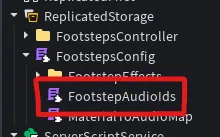
Adding the audio
You'll notice a handful of audio entries which look like this:
Lua--!strict return { Bass = { Ids = { "rbxassetid://9126748907", "rbxassetid://9126748813", "rbxassetid://9126748580", "rbxassetid://9126748691", "rbxassetid://9126748431", "rbxassetid://9126748324", "rbxassetid://9126748239", "rbxassetid://9126748185", "rbxassetid://9126748045", "rbxassetid://9126747958", }, BaseVolume = 1.0, }, --... and more }
You can either create or edit an existing entry. Ensure you give it a easy to understand name like "Concrete2" or "Metals"
Set material audio map
Now that you've added in your new audio entry, you still need to apply it to an actual material. To do this navigate to the MaterialToAudioMap module.
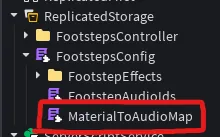
You'll see something like this:
Lua--!strict return { [Enum.Material.Slate] = FootstepAudioIds.Concrete, [Enum.Material.Concrete] = FootstepAudioIds.Concrete, [Enum.Material.Brick] = FootstepAudioIds.Concrete, [Enum.Material.Cobblestone] = FootstepAudioIds.Concrete, --... and more }
You'll want to look at the value each material is being set to, and use your new audio entry with the name you used.
After you've successfully done that, you're done!